
How to Speed Up Your WordPress Website in 2026: The Complete Optimization Guide
A slow WordPress website costs you visitors, rankings, and revenue. Google’s research shows that 53% of mobile users abandon a page that takes longer than 3 seconds to load. For every second of delay, conversion rates drop by an average of 7%. In 2026, with Core Web Vitals firmly embedded in Google’s ranking algorithm, page speed is no longer a nice-to-have feature. It is a direct ranking factor.
This guide covers every proven technique to make your WordPress site fast, including the tools to measure it, the plugins to fix it, and the settings that matter most. Whether you are running a small business site, an e-commerce store, or a high-traffic blog, the steps below apply directly to your situation.
Understanding Core Web Vitals in 2026
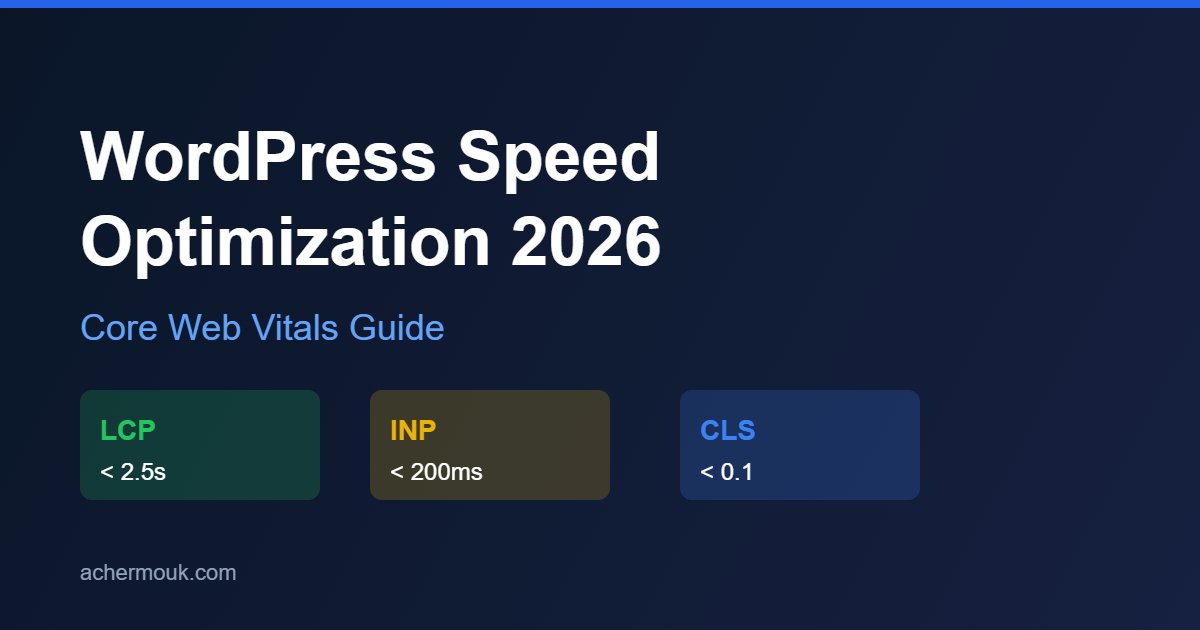
Google measures page experience using three Core Web Vitals metrics. Failing any of them can hurt your rankings. Here is what each metric means and the scores you should target:
| Metric | What It Measures | Good Score | Needs Improvement | Poor Score |
|---|---|---|---|---|
| LCP (Largest Contentful Paint) | Loading performance of the main content | Under 2.5 seconds | 2.5 to 4 seconds | Over 4 seconds |
| INP (Interaction to Next Paint) | Responsiveness to user interactions | Under 200ms | 200ms to 500ms | Over 500ms |
| CLS (Cumulative Layout Shift) | Visual stability of page elements | Under 0.1 | 0.1 to 0.25 | Over 0.25 |
As of late 2025, only 44% of WordPress sites on mobile pass all three Core Web Vitals. The biggest challenge is LCP, which is often caused by a slow Time to First Byte (TTFB). Only 32% of WordPress sites have a good TTFB, which means most sites are failing before a single image even loads.

Step 1: Start With Quality Hosting
Your hosting provider is the foundation of your WordPress speed. No amount of plugin optimization can compensate for a slow server. In 2026, look for a hosting plan with the following features:
- PHP 8.2 or 8.3 support: PHP 8.3 delivers 15 to 25% speed improvements over PHP 7.4 through JIT (Just-In-Time) compilation. Always run the latest stable PHP version.
- Server-side caching: Redis or Memcached for object caching significantly reduces database query load.
- NVMe SSD storage: Faster read and write speeds compared to standard SSDs.
- TTFB under 200ms: Anything above 600ms is a red flag indicating server-side problems.
- HTTP/2 or HTTP/3 support: Both allow multiple resources to load simultaneously over a single connection.
| Hosting Type | Performance | Best For | Approximate Monthly Cost |
|---|---|---|---|
| Managed WordPress Hosting | Excellent | Businesses, agencies | $25 to $100+ |
| VPS Hosting (optimized) | Very Good | Growing sites | $10 to $50 |
| Cloud Hosting | Very Good | Scalable traffic sites | $10 to $80 |
| Shared Hosting | Fair | Starter sites only | $3 to $10 |
Step 2: Install a Reliable Caching Plugin
Caching stores a pre-built version of your page so the server does not have to regenerate it for every visitor. This is one of the single highest-impact changes you can make to a slow WordPress site.
Best WordPress Caching Plugins in 2026
- WP Rocket (Premium): The most beginner-friendly all-in-one solution. Activating it immediately enables page caching, GZIP compression, and browser caching. It also includes lazy loading, CSS and JS minification, and database cleanup tools in a single dashboard.
- LiteSpeed Cache (Free): The best free option if your host runs LiteSpeed Web Server. Because it operates at the server level rather than PHP, it achieves much faster TTFB than other plugins.
- W3 Total Cache (Free): The most feature-rich free plugin available. It supports every caching layer, including page, database, object, browser, and fragment caching, along with full CDN integration.
Regardless of which caching plugin you choose, make sure you enable the following settings:
- Page caching
- Browser caching
- GZIP or Brotli compression
- CSS and JavaScript minification
- CSS and JavaScript file combining (test carefully as this can break some plugins)

Step 3: Optimize Every Image on Your Site
Images are often the single largest contributor to slow page load times. Optimizing them properly can reduce total page size by 40 to 70% without any visible quality loss.
Image Optimization Best Practices
- Convert to WebP format: WebP images are 25 to 35% smaller than JPEG with equivalent visual quality. All major browsers support WebP, and there is no reason to serve JPEG or PNG when WebP is available.
- Enable lazy loading: Lazy loading defers images below the fold so they only load when the user scrolls to them. WordPress has included native lazy loading since version 5.5, so no extra plugin is required for standard images.
- Resize images before uploading: Never upload a 4000px wide photo to display it at 800px. Resize images to the actual display dimensions before uploading.
- Compress without over-compressing: Target a quality setting of 80 to 85% for lossy compression. Below 70%, visual degradation becomes noticeable.
- Use descriptive file names and alt text: This improves image SEO and accessibility, and helps search engines understand what your images depict.
| Plugin | Free Plan | WebP Conversion | Bulk Optimization | Best For |
|---|---|---|---|---|
| Imagify | Limited (25MB/month) | Yes | Yes | Most users |
| ShortPixel | 100 images/month | Yes | Yes | Blogs and business sites |
| Smush | Yes (lossy only) | Pro only | Yes | Budget setups |
| EWWW Image Optimizer | Yes | Yes | Yes | Advanced users |
Step 4: Use a Content Delivery Network (CDN)
A Content Delivery Network distributes your static assets, such as images, CSS files, and JavaScript, across servers in multiple geographic locations. When a user visits your site, those files are served from the server closest to them, reducing latency and improving load times significantly.
A CDN is particularly important if your audience is spread across multiple countries. For example, if your server is in France and a visitor is accessing your site from Canada, a CDN can cut the delivery time for static assets by 60% or more.
- Cloudflare (Free and Pro): The most widely used CDN for WordPress. The free plan covers most use cases, including global asset distribution, DDoS protection, and SSL. The Pro plan adds image optimization and faster cache purging.
- BunnyCDN: Excellent performance at a very low price. Pay-as-you-go pricing starting at around $0.01 per GB. Integrates easily with most WordPress caching plugins.
- KeyCDN: Reliable and affordable with strong documentation and straightforward WordPress integration.
Step 5: Minify and Defer CSS and JavaScript
Every CSS and JavaScript file that loads on your page adds to your total load time. Minification removes unnecessary whitespace, comments, and redundant code from these files. Deferring JavaScript prevents non-critical scripts from blocking the rendering of your page.
- Minify CSS and JS: Most caching plugins handle this automatically. Enable minification in your caching plugin settings.
- Defer non-critical JavaScript: Add the
deferorasyncattribute to JavaScript files that do not need to load before the page renders. WP Rocket and LiteSpeed Cache both offer this as a toggle. - Eliminate render-blocking resources: Use Google PageSpeed Insights to identify render-blocking CSS and JS. Load critical CSS inline and defer the rest.
- Remove unused CSS: Page builders and themes often load CSS for every element on every page, even when most of it is not used. Tools like the Remove Unused CSS feature in WP Rocket can dramatically reduce CSS payload.
Step 6: Optimize Your WordPress Database
Over time, your WordPress database accumulates clutter that slows down queries. Post revisions, spam comments, expired transients, and orphaned metadata all add unnecessary weight. Perform a database cleanup at least once a month.
Use a plugin like WP-Optimize or Advanced DB Cleaner to automate this process. The key items to clean up include:
- Post revisions (limit to 5 per post in your
wp-config.phpusingdefine('WP_POST_REVISIONS', 5);) - Auto-draft posts
- Spam and trash comments
- Expired transients
- Orphaned post metadata
Step 7: Audit and Limit Your Plugins
Every plugin you install adds code that runs on your server and in the browser. Many plugins add JavaScript and CSS files to every page, even when they are only needed on specific pages. Plugins are one of the most common causes of poor WordPress performance.
- Deactivate and delete any plugin you have not actively used in the past 90 days.
- Test your site speed before and after removing each plugin to identify which ones have the biggest performance impact.
- Use Query Monitor to identify plugins that generate excessive database queries.
- Replace multiple single-purpose plugins with one well-built all-in-one solution wherever possible.
Step 8: Use a Lightweight Theme
Heavy page builder themes can load 20 or more JavaScript and CSS files and several megabytes of code on every page. This is one of the most common causes of poor LCP scores. If performance is a priority, consider themes built specifically for speed:
- GeneratePress: Lightweight and well-optimized. The free version loads under 10KB of CSS and no JavaScript by default.
- Kadence: Modern, fast, and highly compatible with Gutenberg and other page builders.
- Astra: One of the most popular lightweight themes with extensive customization options.
- Blocksy: Built on modern WordPress block technology with strong performance characteristics.
Step 9: Optimize Web Fonts
Web fonts can have a significant impact on loading speed and LCP. Google Fonts, in particular, can add 300 to 500ms to load time due to the external DNS request required to fetch them.
- Host fonts locally: Download your Google Fonts and host them on your own server to eliminate the external DNS lookup. The OMGF (Optimize My Google Fonts) plugin automates this process.
- Preload critical fonts: Add a
link rel="preload"hint for your primary font file so the browser fetches it as early as possible. - Limit font variants: Only load the font weights and styles you actually use. Loading every weight from 100 to 900 when you only use 400 and 700 is wasteful.
- Use font-display: swap: This ensures text renders immediately using a fallback font while the custom font loads, preventing invisible text during page load.

Step 10: Measure, Monitor, and Iterate
Speed optimization is not a one-time task. Plugins get updated, content gets added, and your traffic patterns change. Regular monitoring ensures your site stays fast over time.
| Tool | What It Measures | Best Used For |
|---|---|---|
| Google PageSpeed Insights | Core Web Vitals, lab and field data | Regular audits and identifying specific issues |
| GTmetrix | Waterfall analysis, load time breakdown | Diagnosing which files are slowing the page |
| WebPageTest | Multi-location testing, filmstrip view | Advanced audits and real-world load analysis |
| Google Search Console | Core Web Vitals field data from real users | Tracking performance trends over time |
| Query Monitor (plugin) | Database queries, PHP errors, REST API calls | Diagnosing server-side performance issues |
Run PageSpeed Insights on your five highest-traffic URLs at least once per month. Track your Core Web Vitals scores in Google Search Console over time. If scores drop, investigate recent plugin updates or new content additions as potential causes.
Complete WordPress Speed Optimization Checklist
Use the checklist below to track your progress and ensure you have addressed every key area of WordPress performance:
| Category | Action | Priority |
|---|---|---|
| Hosting | Upgrade to managed or VPS hosting with SSD storage | High |
| Hosting | Upgrade to PHP 8.2 or PHP 8.3 | High |
| Hosting | Enable object caching with Redis or Memcached | High |
| Caching | Install and configure a caching plugin | High |
| Caching | Enable GZIP or Brotli compression | High |
| Caching | Enable browser caching | High |
| Images | Convert all images to WebP format | High |
| Images | Enable lazy loading for images | High |
| Images | Resize images to actual display dimensions before uploading | High |
| CDN | Set up Cloudflare or BunnyCDN | Medium |
| Code | Minify CSS and JavaScript files | Medium |
| Code | Defer or async non-critical JavaScript | Medium |
| Code | Remove unused CSS | Medium |
| Database | Clean up post revisions, spam, and transients | Medium |
| Database | Limit post revisions in wp-config.php | Medium |
| Plugins | Audit and remove unused plugins | Medium |
| Theme | Switch to a lightweight theme if needed | Medium |
| Fonts | Host Google Fonts locally | Low |
| Fonts | Limit font weights to those actually used | Low |
| Monitoring | Run monthly PageSpeed Insights audits | Ongoing |
| Monitoring | Monitor Core Web Vitals in Google Search Console | Ongoing |
Conclusion
Speeding up a WordPress website requires a systematic approach across multiple layers, including hosting, caching, images, code, and ongoing monitoring. There is no single plugin that solves every performance problem, and the best results come from addressing each area methodically.
If your site is currently scoring below 70 on Google PageSpeed Insights, start with hosting and caching. Those two areas typically deliver the largest gains. Then work through image optimization, code minification, and database cleanup. For most WordPress sites, following this guide will bring your PageSpeed score above 85 and your load time well under 3 seconds on both mobile and desktop.
Need professional help optimizing your WordPress site or improving your Core Web Vitals scores? Get in touch with SIMO, a WordPress developer and SEO expert with over 6 years of experience helping businesses achieve faster, higher-ranking websites.