

WordPress Image SEO in 2026: The Complete Guide to Optimizing Images for Google
Images make up between 60% and 75% of the total weight of a typical WordPress page, yet they remain one of the most neglected parts of an SEO strategy. If your images are oversized, poorly named, missing alt text, or served in outdated formats, you are losing rankings, traffic, and sales without even noticing.
In 2026, Google ranks pages using Core Web Vitals, and images directly impact two of the most important metrics: Largest Contentful Paint (LCP) and Cumulative Layout Shift (CLS). On top of that, Google Images continues to drive a huge amount of visual search traffic, and AI-powered engines such as Google AI Overviews and Perplexity now use image context as a ranking signal.
This guide gives you a complete, practical, up-to-date playbook for WordPress Image SEO in 2026. By the end, you will know exactly how to choose the right format, compress images without losing quality, write alt text that ranks, add structured data, and configure your WordPress site so every image works for your SEO instead of against it.
What Is WordPress Image SEO?
Image SEO is the process of optimizing images so they help your pages rank higher in Google Search, Google Images, and AI-driven search engines, while also improving user experience and page performance. It covers:
- File format selection (JPEG, PNG, WebP, AVIF, SVG)
- Image compression and file size
- File naming conventions
- Alt text and descriptive attributes
- Responsive delivery and lazy loading
- Structured data for images
- Image sitemaps
- CDN and caching configuration
When executed correctly, image SEO delivers three compounding benefits: higher organic rankings in Google Search and Google Images, faster page load times that improve Core Web Vitals, and better accessibility for users with visual impairments.
1. Choose the Right Image Format
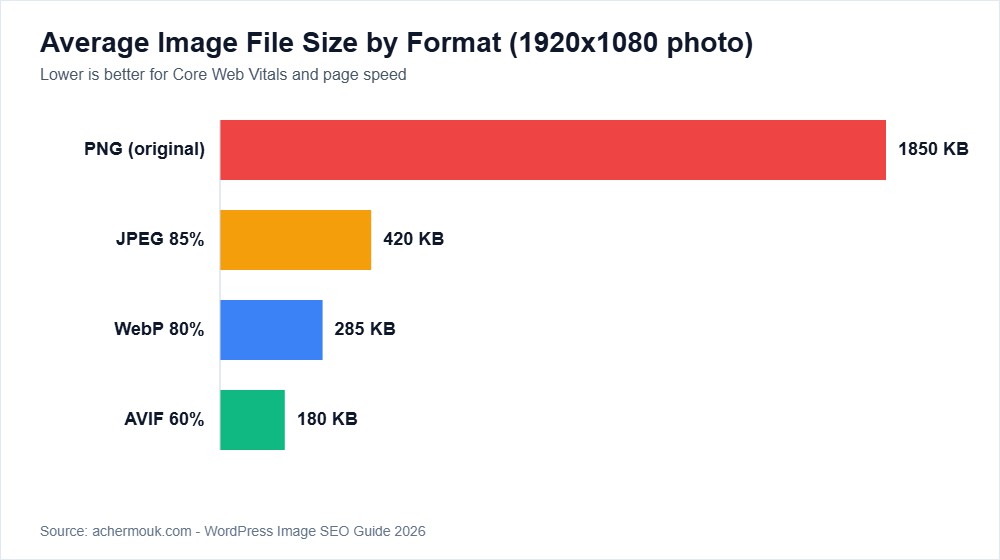
The format you choose directly affects file size, quality, and compatibility. Here is a comparison of the main formats used on WordPress sites in 2026:
| Format | Best Used For | Transparency | Typical File Size | Browser Support |
|---|---|---|---|---|
| JPEG | Photos, complex gradients | No | Medium | Universal |
| PNG | Logos, screenshots, graphics with text | Yes | Large | Universal |
| WebP | General replacement for JPEG and PNG | Yes | 25% to 35% smaller than JPEG | 97% of browsers |
| AVIF | Next-generation format, best compression | Yes | 50% smaller than JPEG | 93% of browsers |
| SVG | Icons, logos, illustrations | Yes | Very small (vector) | Universal |
Recommendation for 2026: Serve AVIF or WebP as the default with JPEG or PNG as fallbacks. WordPress 6.5 and above supports WebP natively, and most modern optimization plugins generate AVIF automatically.
2. Use Proper Image Dimensions
Uploading a 4000 pixel wide photo when your theme only displays 800 pixels is one of the most common mistakes on WordPress sites. WordPress generates multiple sizes automatically, but the uploaded original still wastes storage, bloats backups, and slows down your media library.
Recommended dimensions in 2026:
- Featured images: 1200×630 pixels (ideal for Open Graph and Twitter Cards)
- Full width banners: 1920×1080 pixels maximum
- Inline content images: 800 to 1200 pixels wide
- Thumbnails: 300 to 500 pixels
- Logos: SVG format whenever possible
Resize images before uploading using tools such as Photoshop, GIMP, Affinity Photo, or free web tools like Squoosh and TinyPNG.
3. Write SEO-Friendly File Names
Google reads image file names. A file called IMG_4372.JPG provides zero context, while a file named wordpress-image-seo-guide-2026.jpg is a clear ranking signal.
Rules for naming image files:
- Use lowercase letters only
- Separate words with hyphens, not underscores
- Include the primary keyword naturally
- Keep names under 60 characters
- Avoid special characters and spaces
- Describe the actual image content
| Bad File Name | Good File Name |
|---|---|
| DSC_0021.jpg | marrakech-riad-interior.jpg |
| image1.png | wordpress-dashboard-settings.png |
| Screenshot%202026.png | google-search-console-coverage-report.png |
| photo_final_v2.jpg | blue-ceramic-coffee-cup-handmade.jpg |
4. Write Effective Alt Text
Alt text (alternative text) serves three purposes: it describes images for screen readers to improve accessibility, it appears when an image fails to load, and it helps Google understand the image context for ranking in both web results and Google Images.
How to write great alt text in 2026:
- Be descriptive and specific
- Keep it under 125 characters
- Include the primary keyword naturally, but never stuff
- Do not start with “Image of” or “Picture of”
- Leave purely decorative images with empty alt (
alt="") - Describe the action, context, and subject
| Quality | Alt Text Example |
|---|---|
| Poor | seo |
| Better | SEO optimization |
| Best | WordPress SEO dashboard showing Rank Math keyword analysis in 2026 |
In WordPress, you can add alt text directly from the media library, from the block editor when inserting an Image block, or via the Image block properties panel.
5. Compress Images Without Losing Quality
Every kilobyte matters. A 2 MB hero image can push your LCP beyond 4 seconds on mobile, which directly hurts rankings. The goal is to balance visual quality with file size.
Recommended compression levels:
- JPEG: 75 to 85 quality
- PNG: Use lossy compression via pngquant or TinyPNG
- WebP: 75 to 80 quality
- AVIF: 50 to 65 quality
Here are the top WordPress image optimization plugins compared:
| Plugin | Free Tier | WebP Generation | AVIF Support | CDN Included |
|---|---|---|---|---|
| ShortPixel | 100 images per month | Yes | Yes | Yes (paid) |
| Smush | Unlimited (basic) | Yes (Pro) | No | Yes (Pro) |
| Imagify | 20 MB per month | Yes | Yes | Yes |
| EWWW Image Optimizer | Unlimited (local) | Yes | Yes (paid) | Yes (paid) |
| Converter for Media | Unlimited | Yes | Yes | No |
For most small to medium WordPress sites, Converter for Media (free) combined with a caching plugin such as LiteSpeed Cache or WP Rocket provides excellent results without additional cost.
6. Implement Lazy Loading the Right Way
Lazy loading defers the download of images that are below the fold until the user scrolls near them. WordPress 5.5 and later enables native lazy loading by default using the loading="lazy" attribute on images.
Key recommendations:
- Never lazy load above-the-fold images, especially the hero image or LCP element
- Use
loading="eager"on critical images - Use
fetchpriority="high"on the LCP image to boost load speed
Example markup for an LCP image:
<img src="hero.webp"
     alt="WordPress Image SEO hero banner"
     width="1200" height="630"
     loading="eager"
     fetchpriority="high">
7. Always Include Width and Height Attributes
Setting explicit width and height attributes prevents layout shift (CLS), one of the three Core Web Vitals. WordPress adds them automatically for images inserted via the block editor, but custom themes and some page builders occasionally strip them during rendering.
<img src="product.webp"
     alt="Handmade ceramic coffee cup in white"
     width="800" height="600">
8. Add Image Structured Data (Schema Markup)
Structured data helps Google understand the context of your images and can unlock rich results in Google Search and Google Images. For a deeper dive on this topic, see my dedicated guide on how to add Schema markup to WordPress in 2026.
Important image schema types in 2026:
- ImageObject for general content images
- Product for e-commerce (works natively with WooCommerce)
- Recipe for food blogs
- Article for news and blog content
- NewsArticle for publishers appearing in Google News
Example JSON-LD for a blog post image:
{
  "@context": "https://schema.org",
  "@type": "ImageObject",
  "contentUrl": "https://example.com/image.jpg",
  "license": "https://example.com/license",
  "creditText": "Photo by John Doe",
  "creator": { "@type": "Person", "name": "John Doe" },
  "copyrightNotice": "© 2026 Example.com"
}
Plugins such as Rank Math and AIOSEO generate most of this automatically when you set the featured image and configure your schema settings.
9. Generate an Image Sitemap
An image sitemap helps Google discover and index all your images faster. Most SEO plugins handle this automatically:
- Rank Math: Generates an image sitemap by default
- Yoast SEO: Includes images inside the main XML sitemap
- AIOSEO: Offers a dedicated image sitemap option
You can verify image coverage in Google Search Console under Indexing, then Pages, then Image indexing. If you need help with this tool, check my full guide on how to use Google Search Console for SEO in 2026.
10. Use a CDN for Global Image Delivery
A Content Delivery Network (CDN) caches your images on servers around the world, delivering them from the location closest to each visitor. This cuts latency and improves your Largest Contentful Paint score.
| CDN | Free Tier | Image Optimization | Automatic WebP |
|---|---|---|---|
| Cloudflare | Yes | Polish (paid) | Yes (paid) |
| BunnyCDN | No (low cost) | Yes | Yes |
| QUIC.cloud | Yes (limited) | Yes | Yes |
| KeyCDN | Trial only | Yes | Yes |
| Jetpack Site Accelerator | Yes | Basic | Basic |
For WooCommerce stores and image-heavy WordPress blogs, Cloudflare with Polish, or QUIC.cloud integrated with LiteSpeed Cache, provide excellent price-to-performance ratios. For a full setup walkthrough, read how to speed up your WordPress website in 2026.
11. Optimize Images for Google Discover and AI Overviews
Google Discover, Google AI Overviews, and AI-powered engines rely heavily on high-quality images. To maximize visibility in 2026:
- Use images that are at least 1200 pixels wide
- Enable
max-image-preview:largein your robots meta tag (most SEO plugins do this automatically) - Ensure images are crawlable and not blocked in
robots.txt - Match the image visually to the article title and topic
- Place the most relevant image near the top of the article
- Use unique images rather than generic stock photography when possible
If you want to go further with AI search engines, read my complete guide on Generative Engine Optimization (GEO) in 2026.
12. Avoid These Common Image SEO Mistakes
Even experienced WordPress users fall into these traps. Make sure you do not:
- Upload images at full camera resolution
- Use stock photos without proper optimization
- Leave alt text empty on meaningful images
- Stuff keywords into alt text
- Use underscores or spaces in file names
- Block
/wp-content/uploads/insiderobots.txt - Forget to lazy load below-the-fold images
- Skip next-generation formats like WebP and AVIF
- Ignore image sitemaps
- Reuse the same alt text for every image on a page
WordPress Image SEO Checklist for 2026
Use this quick checklist every time you upload a new image to your WordPress site:
- File resized to the correct dimensions
- Compressed to under 150 KB when possible
- File name uses hyphens and includes a relevant keyword
- Alt text is descriptive and under 125 characters
- Title and caption filled in where relevant
- Served in WebP or AVIF format
- Width and height attributes are set
- Lazy loading enabled (except on the LCP image)
- Image appears in the XML or image sitemap
- Structured data added for featured images
Recommended Tools for WordPress Image SEO
Here is a curated toolkit used by agencies and serious WordPress site owners in 2026:
| Purpose | Recommended Tools |
|---|---|
| Compression | ShortPixel, Imagify, Converter for Media |
| Format conversion | Squoosh, WebP Express |
| CDN | Cloudflare, BunnyCDN, QUIC.cloud |
| Caching | LiteSpeed Cache, WP Rocket |
| SEO plugin | Rank Math, AIOSEO |
| Performance testing | PageSpeed Insights, WebPageTest, GTmetrix |
| Manual editing | Photoshop, GIMP, Affinity Photo |
Frequently Asked Questions About WordPress Image SEO
Does image SEO really affect Google rankings in 2026?
Yes. Images impact Core Web Vitals (LCP and CLS), page speed, accessibility, and Google Images visibility. All of these are direct or indirect ranking factors.
Should I use WebP or AVIF on my WordPress site?
Use both. Serve AVIF as the primary format with WebP as a fallback, and JPEG or PNG for browsers that do not support modern formats. Most optimization plugins handle this automatically.
How many KB should a WordPress image be?
Aim for under 150 KB for inline images and under 300 KB for full-width banners. The LCP image should be as small as possible while keeping acceptable visual quality.
Can I use AI-generated images for SEO?
Yes, AI-generated images are allowed as long as they add value, are relevant to the content, and follow applicable licensing and disclosure rules in your region.
Do I need a separate image sitemap?
Not necessarily. Modern SEO plugins like Rank Math, Yoast, and AIOSEO already include images inside your XML sitemap. A dedicated image sitemap is only useful for very large or image-heavy sites.
Final Thoughts
Image SEO in 2026 is no longer optional. With Core Web Vitals firmly embedded in the ranking system, Google AI Overviews prioritizing visual content, and mobile users representing the majority of traffic, every image on your WordPress site needs to be optimized for performance, accessibility, and discoverability.
Start with the easy wins: rename your files with descriptive keywords, add proper alt text, compress large images, and enable WebP or AVIF conversion. Then move on to advanced optimizations such as CDN integration, image structured data, and lazy loading strategy tuned for your LCP element.
If you want a professional audit of your WordPress image SEO, or if you need help implementing any of the strategies covered in this guide, feel free to contact me directly. As a WordPress developer and SEO specialist, I will review your site and give you a prioritized action plan tailored to your goals.