
How to Add Schema Markup to WordPress in 2026: The Complete Structured Data Guide
If your WordPress website is not using schema markup yet, you are leaving free traffic on the table. Schema markup, also known as structured data, is the code that tells search engines exactly what your content is about. It is the difference between a plain blue link in search results and a rich snippet with star ratings, FAQs, prices, or event details that grabs attention and drives clicks.
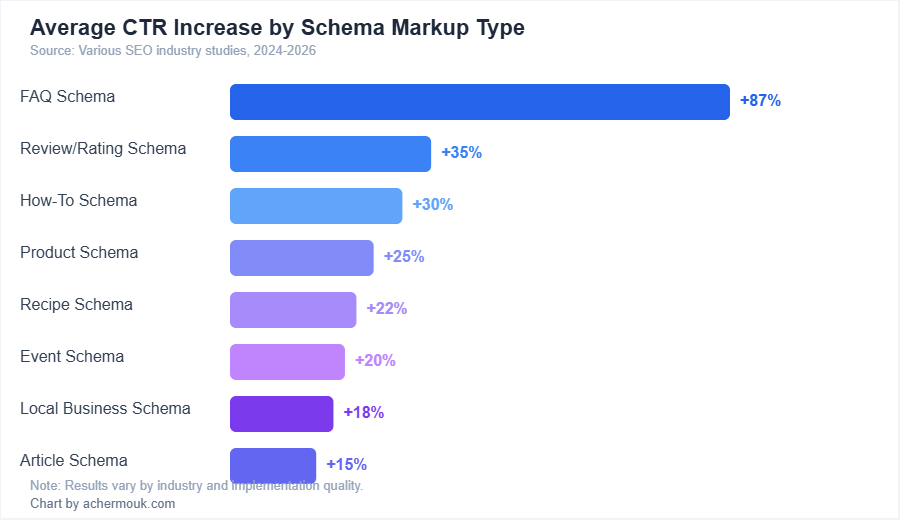
In 2026, schema markup is no longer optional for serious website owners. With Google increasingly relying on structured data for AI Overviews, featured snippets, and rich results, websites that implement schema markup correctly enjoy significantly higher click-through rates and better visibility. According to industry studies, pages with rich results see CTR increases ranging from 15% to 87% depending on the schema type used.
This guide will walk you through everything you need to know about adding schema markup to your WordPress site. Whether you are a complete beginner or an experienced developer looking to refine your structured data strategy, you will find actionable steps, real code examples, plugin comparisons, and testing methods to get your schema markup working perfectly.
What Is Schema Markup and Why Does It Matter for SEO?
Schema markup is a standardized vocabulary of tags (or microdata) that you add to your HTML to help search engines understand the context of your content. Developed collaboratively by Google, Bing, Yahoo, and Yandex through the Schema.org project, it provides a shared language that search engines use to interpret web pages more accurately.
Think of it this way: without schema markup, a search engine sees your page as a collection of text, images, and links. It has to guess what your content represents. With schema markup, you explicitly tell search engines that a specific piece of text is a product name, a review rating, a recipe cooking time, or a business address. This precision eliminates guesswork and helps search engines display your content in the most relevant and visually appealing way possible.
The Three Formats of Structured Data
There are three main formats for implementing structured data on your website:
JSON-LD (JavaScript Object Notation for Linked Data) is the format recommended by Google. It is placed within a script tag in your page’s HTML head or body, and it does not interfere with your visible content or HTML structure. This makes it the easiest to implement and maintain. Most WordPress plugins use JSON-LD by default.
Microdata is embedded directly into your HTML elements using specific attributes like itemscope, itemtype, and itemprop. While it works well, it requires modifying your HTML templates directly, which makes it harder to maintain and more prone to errors when updating themes.
RDFa (Resource Description Framework in Attributes) is similar to Microdata in that it uses HTML attributes, but it follows a different syntax. It is less commonly used for SEO purposes and is primarily found in older implementations.
For WordPress users, JSON-LD is the clear winner. It is clean, does not break your layout, and is supported by every major SEO plugin. All the examples in this guide use JSON-LD.
How Schema Markup Affects Your Search Results
When you implement schema markup correctly, Google can display enhanced search results called rich snippets or rich results. These enhanced listings take up more visual space on the search results page and provide users with additional information before they even click. Here are the most common types of rich results you can achieve with schema markup:
| Schema Type | Rich Result Display | Best For |
|---|---|---|
| Article | Headline, image, date, author | Blog posts, news articles |
| FAQ | Expandable question/answer dropdowns | Help pages, informational content |
| How-To | Step-by-step instructions with images | Tutorials, guides |
| Product | Price, availability, star ratings | E-commerce, product pages |
| Review | Star ratings, reviewer info | Product/service reviews |
| Local Business | Address, hours, phone, map | Local businesses, agencies |
| Event | Date, location, ticket prices | Conferences, webinars, concerts |
| Recipe | Cook time, calories, ratings, image | Food blogs, recipe sites |
| Video | Thumbnail, duration, upload date | Video content pages |
| Breadcrumb | Navigation path in search results | Any website with hierarchy |
Method 1: Adding Schema Markup with a WordPress Plugin (Recommended)
For most WordPress users, using a plugin is the fastest and most reliable way to implement schema markup. The best SEO plugins now include robust schema markup features that automatically generate structured data based on your content type, with options for customization.
Using Rank Math (Free and Pro)
Rank Math is one of the most popular SEO plugins for WordPress, and its schema markup features are among the most comprehensive available. The free version supports 16 schema types, while the Pro version adds advanced schema types, custom schema builder, and the ability to add multiple schema types to a single page.
Step 1: Install and activate Rank Math. Go to Plugins > Add New in your WordPress dashboard, search for “Rank Math SEO,” and install it. Run the setup wizard to configure your basic site settings.
Step 2: Configure global schema settings. Navigate to Rank Math > Titles & Meta > Posts (or any post type). Under the Schema Type section, select the default schema type you want applied to all posts. For a blog, choose “Article.” For a product catalog, choose “Product.”
Step 3: Customize schema per post. When editing a post, click the Rank Math icon in the sidebar, then click the Schema tab. Here you can modify the auto-generated schema, change the type, or add additional schema types. For example, you could add FAQ schema to a blog post that includes a frequently asked questions section.
Step 4: Use the Schema Generator (Pro). Rank Math Pro includes a visual Schema Generator that lets you build custom schema types using a form-based interface. This is particularly useful for creating schemas like JobPosting, Course, or SoftwareApplication that require specific properties.
Using Yoast SEO
Yoast SEO automatically adds structured data to your WordPress site using a graph-based approach. It creates a connected knowledge graph that links your site’s entities (organization, authors, articles, pages) together, providing search engines with a comprehensive understanding of your site structure.
Step 1: Install and configure Yoast SEO. After installation, complete the first-time configuration wizard. This is where Yoast gathers the information it needs for your Organization or Person schema, including your site name, logo, and social profiles.
Step 2: Review your Site Representation settings. Go to Yoast SEO > Settings > Site Representation. Make sure your organization name (or personal name), logo, and social profiles are correctly configured. These details feed directly into your schema output.
Step 3: Configure content type defaults. Under Yoast SEO > Settings > Content Types, you can set default schema types for each post type. Yoast handles Article and WebPage schema automatically.
Step 4: Add Schema blocks in the editor. Yoast provides Gutenberg blocks for FAQ and How-To schema. When editing a post, add the “Yoast FAQ” or “Yoast How-To” block and fill in your content. Yoast automatically generates the corresponding schema markup.
Using Schema Pro (Premium)
Schema Pro by Brainstorm Force is a dedicated schema markup plugin that offers the most flexibility for advanced implementations. Unlike all-in-one SEO plugins, Schema Pro focuses exclusively on structured data, which makes it an excellent companion if you are already using a different SEO plugin.
Schema Pro supports over 20 schema types and allows you to create rules-based schema assignments. For example, you could automatically apply “Course” schema to all posts in a specific category, or “Product” schema to all pages using a particular template. The plugin maps your existing content fields (title, excerpt, custom fields) to schema properties, which means your structured data stays in sync with your content automatically.
Method 2: Adding Schema Markup Manually with JSON-LD
If you need full control over your schema markup, or if you want to implement a schema type that your plugin does not support, you can add JSON-LD code manually. This method is ideal for developers and advanced users who want precise control over every property and value.
Basic Article Schema Example
Here is a complete Article schema markup example that you can adapt for your blog posts:
<script type="application/ld+json">
{
  "@context": "https://schema.org",
  "@type": "Article",
  "headline": "How to Add Schema Markup to WordPress",
  "description": "A complete guide to implementing structured data on your WordPress website for better SEO and rich snippets.",
  "image": "https://yoursite.com/images/schema-guide.jpg",
  "author": {
    "@type": "Person",
    "name": "Your Name",
    "url": "https://yoursite.com/about"
  },
  "publisher": {
    "@type": "Organization",
    "name": "Your Site Name",
    "logo": {
      "@type": "ImageObject",
      "url": "https://yoursite.com/logo.png"
    }
  },
  "datePublished": "2026-04-06",
  "dateModified": "2026-04-06",
  "mainEntityOfPage": {
    "@type": "WebPage",
    "@id": "https://yoursite.com/schema-markup-guide/"
  }
}
</script>
FAQ Schema Example
FAQ schema is one of the highest-impact schema types you can implement. It allows your page to display expandable question-and-answer pairs directly in search results, dramatically increasing your listing’s visual footprint and click-through rate.
<script type="application/ld+json">
{
  "@context": "https://schema.org",
  "@type": "FAQPage",
  "mainEntity": [
    {
      "@type": "Question",
      "name": "What is schema markup?",
      "acceptedAnswer": {
        "@type": "Answer",
        "text": "Schema markup is structured data code added to your website that helps search engines understand your content better and display rich results in search listings."
      }
    },
    {
      "@type": "Question",
      "name": "Does schema markup improve SEO rankings?",
      "acceptedAnswer": {
        "@type": "Answer",
        "text": "While schema markup is not a direct ranking factor, it improves click-through rates by enabling rich snippets, which can indirectly improve your rankings through better engagement signals."
      }
    }
  ]
}
</script>
Local Business Schema Example
If you run a local business or agency, Local Business schema is essential for appearing in local search results and Google Maps. Here is a comprehensive example:
<script type="application/ld+json">
{
  "@context": "https://schema.org",
  "@type": "LocalBusiness",
  "name": "Your Business Name",
  "image": "https://yoursite.com/images/storefront.jpg",
  "address": {
    "@type": "PostalAddress",
    "streetAddress": "123 Main Street",
    "addressLocality": "Your City",
    "addressRegion": "Your State",
    "postalCode": "12345",
    "addressCountry": "US"
  },
  "telephone": "+1-555-123-4567",
  "url": "https://yoursite.com",
  "openingHoursSpecification": [
    {
      "@type": "OpeningHoursSpecification",
      "dayOfWeek": ["Monday","Tuesday","Wednesday","Thursday","Friday"],
      "opens": "09:00",
      "closes": "17:00"
    }
  ],
  "priceRange": "$$",
  "sameAs": [
    "https://www.facebook.com/yourbusiness",
    "https://www.linkedin.com/company/yourbusiness"
  ]
}
</script>
How to Add Manual Schema to WordPress
There are several ways to add manual JSON-LD schema to your WordPress site:
Option A: Using your theme’s functions.php file. Add a function that outputs your schema markup in the wp_head hook. This approach works well for site-wide schema like Organization or WebSite schema:
function add_custom_schema_markup() {
    if ( is_front_page() ) {
        echo '<script type="application/ld+json">
        {
            "@context": "https://schema.org",
            "@type": "WebSite",
            "name": "Your Site Name",
            "url": "' . home_url() . '",
            "potentialAction": {
                "@type": "SearchAction",
                "target": "' . home_url() . '/?s={search_term_string}",
                "query-input": "required name=search_term_string"
            }
        }
        </script>';
    }
}
add_action( 'wp_head', 'add_custom_schema_markup' );
Option B: Using a custom HTML block in Gutenberg. For page-specific schema, you can add a Custom HTML block at the bottom of your post and paste your JSON-LD code directly. This is the quickest method for one-off implementations.
Option C: Using a code snippets plugin. Plugins like Code Snippets or WPCode let you add PHP or HTML snippets without editing your theme files. This is the safest approach because your customizations survive theme updates.
Method 3: Using Google Tag Manager for Schema Markup
Google Tag Manager (GTM) provides another way to deploy schema markup without modifying your WordPress files. This method is particularly useful if you already use GTM for analytics and tracking, or if you manage schema across multiple websites.
Step 1: Log into your Google Tag Manager account and select your website container.
Step 2: Create a new tag. Choose “Custom HTML” as the tag type.
Step 3: Paste your JSON-LD schema markup code (including the script tags) into the HTML field.
Step 4: Set the trigger. For site-wide schema (like Organization), use “All Pages.” For page-specific schema, create a trigger based on the Page URL or Page Path.
Step 5: Preview and test your tag using GTM’s preview mode, then publish when everything looks correct.
Keep in mind that Google has confirmed it can read schema markup deployed via GTM, but there can be a slight delay in indexing since the markup is loaded via JavaScript rather than being present in the initial HTML response.
The Most Important Schema Types for WordPress Sites in 2026
Not all schema types are created equal. Some have a bigger impact on your search visibility than others. Here is a prioritized breakdown of which schema types you should implement based on your website type:
For Blog and Content Websites
Start with Article schema on all blog posts. This is typically handled automatically by your SEO plugin. Next, add FAQ schema to posts that include a frequently asked questions section. FAQ rich results can increase your click-through rate by up to 87% according to multiple case studies. Add How-To schema to any tutorial or step-by-step guide content. Also implement Breadcrumb schema for clear site navigation in search results, and add WebSite schema with SearchAction on your homepage to enable a sitelinks search box in Google.
For E-commerce and Product Sites
Product schema is essential for every product page. Include properties like name, description, image, price, currency, availability, and brand. Add Review and AggregateRating schema to display star ratings in search results. Implement BreadcrumbList schema for category navigation. If you run promotions, use Offer schema with sale prices and validity dates. For WooCommerce sites, most of this is handled automatically by plugins like Rank Math or Yoast WooCommerce SEO.
For Local Businesses and Service Providers
LocalBusiness schema (or its subtypes like ProfessionalService, Restaurant, or MedicalBusiness) should be on every page of your site. Include your complete NAP (Name, Address, Phone) information, opening hours, service area, and accepted payment methods. Add Service schema for each service you offer, and implement Review schema with testimonials from your clients. If you host or attend events, add Event schema with dates, locations, and ticket information.
How to Test and Validate Your Schema Markup
Implementing schema markup is only half the job. You need to test it thoroughly to make sure it is valid, error-free, and recognized by search engines. Here are the essential tools for testing your structured data:
Google Rich Results Test
The Google Rich Results Test (search.google.com/test/rich-results) is your primary testing tool. Enter your page URL or paste your code directly, and Google will tell you which rich results your page is eligible for and flag any errors or warnings. This tool shows you exactly what Google sees, making it the most reliable validator.
Schema Markup Validator
The Schema Markup Validator (validator.schema.org) checks your markup against the complete Schema.org specification. It catches more issues than the Rich Results Test because it validates all properties, not just the ones Google supports. Use this tool to ensure your markup is technically correct even if Google does not currently use all the properties you have included.
Google Search Console
Google Search Console provides ongoing monitoring of your structured data across your entire site. The Enhancements section shows reports for each rich result type detected on your site, including valid items, items with warnings, and items with errors. Check this regularly to catch issues as they appear, especially after theme updates or plugin changes that might affect your markup.
Testing Checklist
After implementing schema markup on your WordPress site, run through this validation checklist to make sure everything is working correctly:
- Test at least one URL from each content type (posts, pages, products) in the Rich Results Test
- Verify there are no errors (warnings are acceptable but should be addressed when possible)
- Check that your schema matches the actual visible content on the page
- Confirm that required properties for each schema type are present
- Validate your markup in the Schema.org Validator for completeness
- Monitor the Enhancements reports in Google Search Console for the next 2-4 weeks
- Test your pages on mobile devices since rich results may display differently
- Verify that schema markup does not slow down your page load time
Common Schema Markup Mistakes to Avoid
Even experienced developers make mistakes with schema markup. Here are the most common errors and how to avoid them:
Marking up content that is not visible on the page. Google requires that schema markup reflects content that users can actually see. If your FAQ schema includes questions and answers that do not appear anywhere on the page, Google may issue a manual action penalty against your site. Always make sure your structured data matches your visible content.
Using incorrect or outdated schema types. Schema.org regularly updates its vocabulary, and Google’s support for different types changes over time. For example, Google deprecated the data-vocabulary.org standard in favor of Schema.org. Always check Google’s structured data documentation for the most current list of supported types and required properties.
Missing required properties. Each schema type has a set of required and recommended properties. Submitting schema with missing required properties will result in errors that prevent rich results from appearing. For example, Product schema requires at minimum a name, while Review schema requires an author and a reviewRating.
Duplicate schema from multiple plugins. If you use more than one plugin that generates schema markup, you may end up with duplicate or conflicting structured data. This confuses search engines and can prevent rich results. Audit your page source to make sure only one source is generating each schema type. Use a single plugin for schema management whenever possible.
Not updating schema when content changes. If you update a product price, change your business hours, or modify an article’s publication date, your schema markup should update too. Plugins handle this automatically, but manual implementations require you to update the schema code whenever the content changes.
Self-serving reviews. Adding Review schema for testimonials you wrote yourself about your own business violates Google’s guidelines. Review schema should only be used for genuine third-party reviews from real customers.
Schema Markup and AI Search: Why Structured Data Matters More Than Ever
The rise of AI-powered search experiences like Google’s AI Overviews, Bing’s Copilot, and ChatGPT’s web browsing has made structured data more important than it has ever been. These AI systems rely heavily on structured data to understand and cite web content accurately.
When an AI model generates a response to a user query, it needs to identify authoritative sources, extract accurate facts, and attribute information correctly. Schema markup provides the structured context that helps AI systems accomplish all three of these tasks. Websites with clear, comprehensive schema markup are more likely to be cited in AI-generated responses because the AI can confidently extract and attribute the information.
This trend will only accelerate. As AI search becomes the primary way users find information, your structured data strategy becomes your visibility strategy. Implementing schema markup today is an investment in your website’s discoverability across both traditional and AI-powered search platforms.
Step-by-Step Implementation Plan
If you are starting from scratch, follow this implementation plan to add schema markup to your WordPress site efficiently and without breaking anything:
Week 1: Audit and Foundation. Install your chosen schema plugin (Rank Math or Yoast SEO). Complete the setup wizard with accurate business information including name, logo, address, and social profiles. Configure default schema types for each post type. Test 5-10 pages with the Rich Results Test to establish a baseline.
Week 2: Content-Specific Schema. Identify your top 20 pages by traffic using Google Analytics or Search Console. Add FAQ schema to any pages with question-and-answer content. Add How-To schema to tutorial and guide content. Verify each page with the Rich Results Test after making changes.
Week 3: Advanced Schema. If you run a local business, implement LocalBusiness schema with complete NAP data. For e-commerce sites, verify Product and Review schema is working on all product pages. Add Breadcrumb schema if your plugin does not handle it automatically. Implement WebSite schema with SearchAction on your homepage.
Week 4: Monitor and Optimize. Set up regular monitoring in Google Search Console Enhancements reports. Fix any errors that appear. Track your rich results appearances using Search Console Performance report filtered by search appearance. Document your schema strategy for future reference and team members.
Frequently Asked Questions About Schema Markup
Does schema markup directly improve Google rankings?
Schema markup is not a direct ranking factor confirmed by Google. However, it indirectly improves your SEO performance by enabling rich snippets that increase click-through rates. Higher CTR sends positive engagement signals to Google, which can contribute to ranking improvements over time. Additionally, schema markup helps search engines understand your content more accurately, which can improve relevance matching.
How long does it take for rich results to appear after adding schema?
After implementing schema markup, it typically takes between a few days and several weeks for Google to crawl, validate, and display rich results for your pages. You can speed up this process by requesting a re-crawl of specific URLs through Google Search Console’s URL Inspection tool. Keep in mind that having valid schema markup does not guarantee rich results. Google decides whether to display them based on quality, relevance, and user experience factors.
Can I use multiple schema types on a single page?
Yes, you can and often should use multiple schema types on a single page. For example, a blog post could have Article schema, FAQ schema, and BreadcrumbList schema all on the same page. Each schema type should be placed in its own JSON-LD script block, or they can be combined in a single block using the @graph property. Most SEO plugins handle multiple schema types automatically.
Is schema markup required for all websites?
Schema markup is not technically required, but it is strongly recommended for any website that wants to maximize its search visibility. In 2026, with AI-driven search becoming the norm, structured data is practically a necessity for competitive niches. Even simple websites benefit from basic schema types like WebSite, Organization, and BreadcrumbList.
Will schema markup slow down my WordPress site?
JSON-LD schema markup has a negligible impact on page load speed. The code is lightweight (typically a few kilobytes) and does not require any additional HTTP requests or render-blocking resources. Using a plugin to generate schema does add minimal server-side processing, but this is imperceptible to users and search engines.
Conclusion
Schema markup is one of the most impactful SEO improvements you can make to your WordPress website in 2026. Whether you choose to use a plugin like Rank Math or Yoast SEO, add JSON-LD code manually, or deploy through Google Tag Manager, the important thing is to start implementing structured data now. The websites that communicate clearly with search engines and AI systems are the ones that will capture the most visibility, clicks, and traffic in the months and years ahead.
Start with the basics: install an SEO plugin, configure your site information, and let the plugin handle Article and Organization schema automatically. Then gradually expand to FAQ, How-To, Local Business, or Product schema based on your specific content and business needs. Test everything with Google’s Rich Results Test, monitor your results in Search Console, and refine your strategy over time.
If you need help implementing schema markup on your WordPress site, or if you want a professional audit of your current structured data setup, feel free to get in touch. As a web developer and SEO specialist with over 6 years of experience, I can help you get the most out of your structured data strategy.